
News

Where Did I Leave My Phone?” Protecting Your Phone from Loss and Theft.

Maybe you know that sinking feeling all too well. “Where did I leave my phone?” 

The minutes pass as you search around the house, then you head into the garage to look between the driver’s seat and console of your car. No luck. So it’s back into the house where you turn over every couch cushion. Still nothing. Maybe panic is too strong a word, but you’re starting to get a little worried. 

Then comes the relief. You found it. 

But what if your smartphone really was lost? Or worse yet, stolen? 

Not a pretty thought. But you can put protections in place that can help you recover your phone—or remotely erase it if it indeed gets lost for good. A few up-front steps is all it takes. 

Before your phone gets lost or stolen, protect yourself with the basics.  

Preparation is everything. If your phone gets lost or stolen, you’ll want to act quickly. You’ll also want the reassurance that you have measures in place that can help you find it, recover it, or even erase it as needed. These steps can get you set up so you exactly that. 

Lock your phone. 

Locking your phone is one of the most basic smartphone security measures you can take. Trouble is, few of us do it. 

Our recent global research showed that only 56% of adults said that they protect their smartphone with a password, passcode, or other form of lock. In effect, an unlocked phone is an open book to anyone who finds or steals a phone. It gives them unfettered access to everything on it.  

And that likely includes: 

  • Personal data, such as photos, emails, texts, voicemails, and contact information. 
  • Location data, possibly for family members who share their location with you.  
  • Financial apps, for banks, credit cards, and other accounts. 
  • Payment apps, for transferring money to friends and making payments online. 
  • Social media apps, which make up a big part of a person’s online identity. 
  • Medical and wellness apps, each loaded with personal health data and information. 

Now, imagine that into the wrong hands. That might lead to financial fraud, identity theft, and even more egregious crimes like stalking and extortion. Not to mention doxing, which involves maliciously posting someone else’s photos, files, and information online for all to see. 

Setting up a lock screen is easy. It’s a simple feature found on iOS and Android devices. iPhones and Androids have an auto-lock feature that will lock your phone after a certain period of inactivity. Keep this time on the low end, one minute or less, to help prevent unauthorized access. 

We suggest using a PIN or passcode rather than using a gesture to unlock your phone. They’re more complex and secure. Researchers proved as much with a little “shoulder surfing” test. They looked at how well one group of subjects could unlock a phone after observing the way another group of subjects unlocked it. 

They found that that “Six-digit PINs are the most elusive attacking surface where a single observation leads to only 10.8% successful attacks, improving to 26.5% with multiple observations. As a comparison, six-length Android patterns, with one observation, suffered 64.2% attack rate and 79.9% with multiple observations.” 

Biometric locks like fingerprints and facial IDs are a practical option as well. Yet they present some security issues. With effort, fingerprints can get copied, such as by lifting them off a pane of glass or other things you touch. Facial ID can open a phone even when the owner’s eyes are closed. Again with some effort, a thief or bad actor can open the phone by placing it by the sleeping owner’s face. Note that these are more extreme cases, yet you should be aware of them when determining how you lock your phone.  

Turn on “Find My Phone.” 

Another powerful tool you have at your disposal is the find my phone feature made possible thanks to GPS technology. The “find my” feature can help you pinpoint your phone if your lost or stolen phone has an active data or Wi-Fi connection and has its GPS location services enabled. Even if the phone gets powered down or loses its connection, it can guide you to its last known location. 

Setting up this feature is easy. Apple offers a comprehensive web page on how to enable and use their “Find My” feature for phones (and other devices too). Android users can get a step-by-step walkthrough on Google’s Android support page as well. 

<h3>Back up your stuff in the cloud. 

Thanks to cloud storage, you might be able to recover your photos, files, apps, notes, contact information, and more if your phone is lost or stolen. Android owners can learn how to set up cloud backup with Google Drive here, and iPhone users can learn the same for iCloud here 

Write down your phone’s unique ID number. 

Here come a couple of acronyms. IMEI (International Mobile Equipment Identity) or MEID (Mobile Equipment Identifier) are two types of unique ID numbers assigned to smartphones. Find yours and write it down. In case of loss or theft, your mobile carrier, police department, or insurance provider might ask for the information to assist in its return or reimbursement for loss. 

  • For Android phones, you can find it in Settings à About Phone. 
  • On iPhones, you can find it in Settings à General à About. 

More ways to protect your smartphone from loss or theft. 

Beyond digital security measures, plenty of loss and theft prevention falls on you. Treat your phone like the desirable item it is. That’s a big step when it comes to preventing theft. 

Keep your phone close. 

And by close, we mean on your person. It’s easy to leave your phone on the table at a coffeeshop, on a desk in a shared workspace, or on a counter when you’re shopping. Thieves might jump on any of these opportunities for a quick snatch-and-grab. You’re better off with your phone in your pocket or zipped up in a bag that you keep close. 

Secure your bags and the devices you carry in them. 

Enterprising thieves will find a way. They’ll snatch your bag while you’re not looking. Or they might even slice into it with a knife to get at what’s inside, like your phone.  

Keep your bag or backpack close. If you’re stopping to grab a bite to eat, sling the handles through a chair leg. If you have a strong metal carabiner, you can use that too. Securing your bag like that can make it much tougher for a thief to walk by and swipe it. For extra security, look into a slash-resistant bag. 

Stay aware. 

Thieves will also look for an easy mark. People who appear a little distracted, lost, or even dozing off. Aside from securing your bags, keep an eye on your surroundings. Look at people and smile, walk with purpose, and generally put across an air of confidence. Behavior like this sends a clear signal to thieves—you’re aware. That might be enough for them to pass you up. 

Consider what you’re carrying—and where you carry it. 

If you have a credit card and ID holder attached to the back of your phone, you might want to remove your cards from it. That way, if your phone gets snatched, those important cards won’t get snatched as well. Take a pass on keeping things in your back pocket. Use your front pocket where it’s much more difficult for a thief to pick your pocket.  

And if the unfortunate happens, know how to remotely, track, lock or erase your phone. 

In the event of your phone getting lost or stolen, a combination of device tracking, device locking, and remote erasing can help protect your phone and the data on it.  

Different device manufacturers have different ways of going about it. But the result is the same—you can prevent others from using your phone, and even erase it if you’re truly worried that it’s in the wrong hands or gone for good. Apple provides iOS users with a step-by-step guide, and Google offers up a guide for Android users as well.  

Apple’s Find My app takes things a step further. Beyond locating a lost phone or wiping it, Find My can also mark the item as lost, notify you if you’ve left it behind, or trigger a sound to help you locate it. (A huge boon in that couch cushion scenario!) Drop by Apple’s page dedicated to the Find My app for more details on what you can do on what devices, along with instructions how. 

Take these steps as well if your phone gets lost or stolen. 

  1. Contact your mobile provider. They can suspend service to your phone if needed. 
  2. File a police report. Theft is theft. Report it. I could help get your phone back if it’s found. Also, insurance companies may require a police report number if you file a claim. 
  3. Change your passwords. Mail, social media, payment, and other apps may be accessible to anyone who can open your phone. Change the passwords to any important accounts or apps you have on your phone right away.   

All is not lost. 

With preparation and prevention, you can give yourself reassurance if your phone gets lost or stolen. You have plenty of recovery options, in addition to plenty of ways to prevent bad actors from getting their hands on the sensitive info you keep on it. 

The post Where Did I Leave My Phone?” Protecting Your Phone from Loss and Theft. appeared first on McAfee Blog.

—————
Free Secure Email – Transcom Sigma
Boost Inflight Internet
Transcom Hosting
Transcom Premium Domains

Is My Child Being Cyberbullied Or Is It Just Banter?

If you were to ask me what I consider to be the most attractive attribute in a person, it would be kindness but only closely followed by a sense of humour. There’s something about somebody who can tell a funny story that I just love. And humour can be a great bonding experience for us humans. Laughing over a funny video or sharing a hilarious story is pure friendship gold! But humour can often be murky territory online. 

Kids Love Humour 

One of my favourite things about being a mum of boys is the jokes. My boys can make me laugh till I cry. And the jokes and banter they share amongst themselves warms my heart. Sometimes it feels like slapstick comedy other times its brutal and direct and often a little cheeky. Over the years, ‘safe’ boundaries have been developed for their banter so that no-one gets hurt. But it hasn’t always been perfect. It takes a certain level of maturity and a healthy dose of empathy to know where to draw the line with your humour and, unfortunately, not everyone gets this right. 

When Is a Joke Just a Joke 

All friends will joke around with each other, and our tweens and teens are no exception. Whether it’s sharing comments on funny memes or TikTok’s or leaving witty comments on each other’s online posts, online banter can be quite the demonstration of friendship and connection.  

But sometimes it is hard to tell if someone is just having fun or trying to ridicule or make fun of another online. Without being able to see someone’s face and read their body language in person, the joker’s intention can often be ambiguous. It may be laughed off with a ‘just kidding’ or ‘relax, you’re too serious’. And so, here we are in the grey area. One of the most common questions I am asked by parents is how to differentiate between jokes and cyberbullying online. And my answer is simple. 

If you feel hurt by a joke or think others are laughing at you (instead of with you) then the joke has gone too far. Yes, we all have different levels of sensitivity but if you are offended then it’s time to take some action. Now, if it continues after asking for it to stop and you are still feeling upset then this is bullying.  

It really is simple – a joke is intended to be humorous without causing harm whereas bullying is intended to cause harm to others. And, of course jokes can sometimes go too far but in most cases an apology and an explanation can remedy any hurt.  

When To Take A Stand 

Navigating friendships when you’re in thick of being a teenager can be really tough for some kids particularly those who aren’t as mature or worldly as others. Kids who are a little younger or less experienced with life may feel that they are on the outskirts of their social group. And in my experience, this can be a tough place to be. Regardless of how many times we tell our kids that being popular or accepted doesn’t matter, when you’re 15 it really can. So, if your shy 15-year-old receives a joking message from a kid at school (who he’d like to be friends with) that upsets him, do you need to take action? Or will it jeopardise any chance your child might have to be friends with this child? 

I always like to give a person the benefit of the doubt. So, my advice here would be to continue to monitor the situation. If your child receives additional messages that upset him, then he needs to ask the ‘joker’ to stop. Some kids would be OK to manage this themselves while others might need some help. If they need help, I suggest contacting the school or sporting club that your kids have in common and asking them to intervene. Do not contact the child directly yourself. 

Teach Your Kids What To Do If They Are Cyberbullied 

One of the best things you can do for your kids is ensure they know what to do if they are on the receiving end of behaviour online that they find upsetting. Even if it doesn’t qualify as cyberbullying, having an action plan can empower them. Here’s what I suggest: 

  1. If appropriate, ask the bully or ‘joker’ to stop. If the behaviour continues, then proceed to next step. 
  2. Collect evidence – take screen shots of all communication. 
  3. Block the perpetrator – show your kids how to use these features. 
  4. Talk to a trusted adult – parent, teacher or family member. 
  5. Involve the school or sporting club, if appropriate. 
  6. If no luck with the school, report the incident to The Office of the eSafety Commissioner. They can work to have offensive material and cyberbullying situations addressed. 

It’s often hard to know when to get involved in your teens’ battles. At the end of the day, our job is to help our kids grow into independent adults. But when your gut tells you things are not right then it’s time to start investigating. Insomnia, anxiety, refusing to go to school and a change in the way they use their devices, are all signs they maybe on the receiving end of aggressive online behaviour. And remember, you know your kids better than anyone! 

Till Next Time 

Stay Safe Online 

Alex 🙂 

The post Is My Child Being Cyberbullied Or Is It Just Banter? appeared first on McAfee Blog.

—————
Free Secure Email – Transcom Sigma
Boost Inflight Internet
Transcom Hosting
Transcom Premium Domains

Independent Lab Tests Show that McAfee Stops Malware Dead in Its Tracks

Concerned about ransomware? McAfee stops it dead in its tracks. 

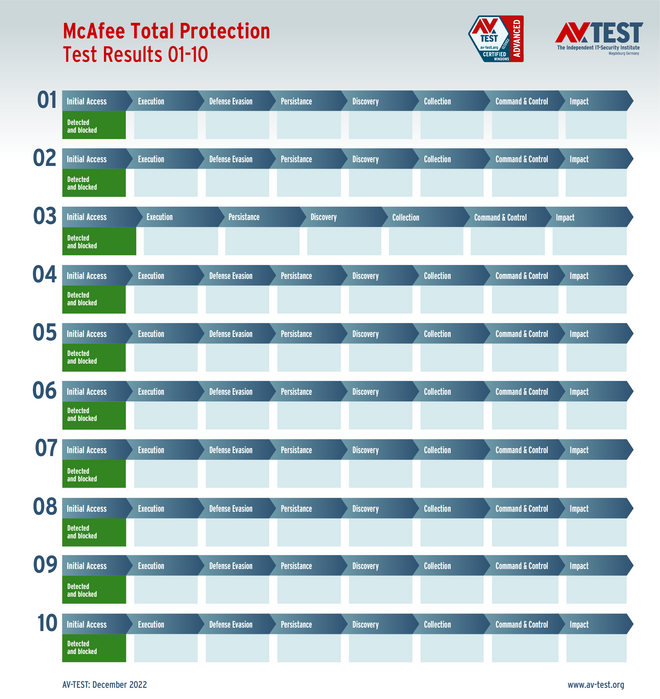
Newly published findings from the independent labs at AV-TEST show that McAfee’s antivirus technology performs best. In recent tests, it detected and blocked top forms of ransomware sooner than the entire field of nine other antivirus technologies. 

In their lab setting, AV-TEST used emails loaded with ransomware attachments to test the defenses of computers. Ransomware is a type of malware that infects a network or a device and then typically encrypts the files, data, and apps stored on it, digitally scrambling them so the proper owners can’t access them, often using sophisticated methods of cryptography that are nearly impossible to undo. AV-TEST used ten different forms of ransomware, each one employing the latest techniques. Only McAfee detected and blocked ransomware at its earliest stage—right when it first arrived by email. 

Put in practical terms, McAfee eliminated the ransomware threat the moment it spotted it. 

Other antivirus software wasn’t so quick. They only detected the ransomware when the user clicked and activated the ransomware. Some antivirus allowed one or two attacks to fully succeed—encrypting files with ransomware as a result. 

McAfee earned a perfect score of 30/30 points possible in this battery of ransomware tests, earning it the distinction of AV-Test’s “Advanced Certified” certificate. 

This follows earlier recognition where McAfee was awarded “Best Protection” by AV-Test in March of this year. 

Note that while AV-Test used McAfee Total Protection in its tests, McAfee uses the same antivirus technology across all our online protection software. That includes all our McAfee+ products, McAfee Total Protection, McAfee LiveSafe, McAfee Internet Security, McAfee AntiVirus Plus, and McAfee Small Business Security. 

For more about ransomware, what it looks like, how it acts, and how you can protect yourself from it, check out our Ransomware Security Guide. It’s part of our broader Security Series, which covers topics from safer online shopping to your privacy on social media and more. 

Learn more about our award-winning antivirus here—plus even more features that can protect your privacy and identity as well. 

The post Independent Lab Tests Show that McAfee Stops Malware Dead in Its Tracks appeared first on McAfee Blog.

—————
Free Secure Email – Transcom Sigma
Boost Inflight Internet
Transcom Hosting
Transcom Premium Domains
How to Avoid Phishing Attacks on Your Smartphones and Computers

Ping, it’s a scammer! 

The sound of an incoming email, text, or direct message has a way of getting your attention, so you take a look and see what’s up. It happens umpteen times a week, to the extent that it feels like the flow of your day. And scammers want to tap into that with sneaky phishing attacks that catch you off guard, all with the aim of stealing your personal information or bilking you out of your money.  

Phishing attacks take several forms, where scammers masquerade as a legitimate company, financial institution, government agency, or even as someone you know. And they’ll come after you with messages that follow suit: 

  • “You have a package coming to you, but we’re having a problem with delivering it. Please click here to provide delivery information receive your package.” 
  • “We spotted what may be unusual activity on your credit card. Follow this link to confirm your account information.” 
  • “You owe back taxes. Send payment immediately using this link or we will refer your case to law enforcement.” 

You can see why phishing attacks can be so effective. Messages like these have an urgency to them, and they seem like they’re legit, or they at least seem like they might deal with something you might care about. But of course they’re just a ruse. And some of them can look and sound rather convincing. Or at least convincing enough that you’ll not only give them a look, but that you’ll also give them a click too. 

And that’s where the troubles start. Clicking the links or attachments sent in a phishing attack can lead to several potentially nasty things, such as: 

  • A phony login page where they scammer tries to steal account credentials from you. 
  • A malware download that can install keylogging software for stealing passwords and other information as you type. 
  • Spyware that hijacks information on your device and secretly sends it back to the scammer. 
  • Ransomware that holds a device and its data hostage until a fee is paid. (By the way, never pay off a ransomware threat. There’s no guarantee that payment will release your device and data back to you.) 

However, plenty of phishing attacks are preventable. A mix of knowing what to look for and putting a few security steps in place can help you keep scammers at bay. 

What do phishing attacks look like? 

How you end up with one has a lot to do with it.  

There’s a good chance you’ve already seen your share of phishing attempts on your phone. A text comes through with a brief message that one of your accounts needs attention, from an entirely unknown number. Along with it is a link that you can tap to follow up, which will send you to a malicious site. In some cases, the sender may skip the link and attempt to start a conversation with the aim of getting you to share your personal information or possibly fork over some payment with a gift card, money order, rechargeable debit card, or other form of payment that is difficult to trace and recover. 

In the case of social media, you can expect that the attack will come from an imposter account that’s doing its best to pose as one of those legitimate businesses or organizations we talked about, or perhaps as a stranger or even someone you know. And the name and profile pic will do its best to play the part. If you click on the account that sent it, you may see that it was created only recently and that it has few to no followers, both of which are red flags. The attack is typically conversational, much like described above where the scammer attempts to pump you for personal info or money. 

Attacks that come by direct messaging apps will work much in the same way. The scammer will set up a phony account, and where the app allows, a phony name and a phony profile pic to go along with it. 

Email gets a little more complicated because emails can range anywhere from a few simple lines of text to a fully designed piece complete with images, formatting, and embedded links—much like a miniature web page.  

In the past, email phishing attacks looked rather unsophisticated, rife with poor spelling and grammar, along with sloppy-looking layouts and images. That’s still sometimes the case today. Yet not always. Some phishing emails look like the real thing. Or nearly so. 

Examples of phishing attacks 

Case in point, here’s a look at a phishing email masquerading as a McAfee email: 

There’s a lot going on here. The scammers try to mimic the McAfee brand, yet don’t quite pull it off. Still, they do several things to try and be convincing.  

Note the use of photography and the box shot of our software, paired with a prominent “act now” headline. It’s not the style of photography we use. Not that people would generally know this. However, some might have a passing thought like, “Huh. That doesn’t really look right for some reason.”  

Beyond that, there are a few capitalization errors, some misplaced punctuation, plus the “order now” and “60% off” icons look rather slapped on. Also note the little dash of fear it throws in at the top of the email with mention of “There are (42) viruses on your computer.”  

Taken all together, you can spot many email scams by taking a closer look, seeing what doesn’t feel right, and then trusting you gut. But that asks you to slow down, take a moment, and eyeball the email critically. Which people don’t always do. And that’s what scammers count on. 

Similar ploys see scammers pose as legitimate companies and retailers, where they either ask you to log into a bogus account page to check statement or the status of an order. Some scammers offer links to “discount codes” that are instead links to landing pages designed steal your account login information as well. Similarly, they may simply send a malicious email attachment with the hope that you’ll click it. 

In other forms of email phishing attacks, scammers may pose as a co-worker, business associate, vendor, or partner to get the victim to click a malicious link or download malicious software. These may include a link to a bogus invoice, spreadsheet, notetaking file, or word processing doc—just about anything that looks like it could be a piece of business correspondence. Instead, the link leads to a scam website that asks the victim “log in and download” the document, which steals account info as a result. Scammers may also include attachments to phishing emails that can install malware directly on the device, sometimes by infecting an otherwise everyday document with a malicious payload. 

Email scammers may also pose as someone you know, whether by propping up an imposter email account or by outright hijacking an existing account. The attack follows the same playbook, using a link or an attachment to steal personal info, request funds, or install malware. 

How to avoid phishing attacks 

While you can’t outright stop phishing attacks from making their way to your computer or phone, you can do several things to keep yourself from falling to them. Further, you can do other things that may make it more difficult for scammers to reach you. 

1. Pause and think about the message for a minute. 

The content and the tone of the message can tell you quite a lot. Threatening messages or ones that play on fear are often phishing attacks, such angry messages from a so-called tax agent looking to collect back taxes. Other messages will lean heavy on urgency, like the phony McAfee phishing email above that says your license has expired today and that you have “(42)” viruses. And during the holidays, watch out for loud, overexcited messages about deep discounts on hard-to-find items. Instead of linking you off to a proper ecommerce site, they may link you to a scam shopping site that does nothing but steal your money and the account information you used to pay them. In all, phishing attacks indeed smell fishy. Slow down and review that message with a critical eye. It may tip you off to a scam. 

2. Deal directly with the company or organization in question. 

Some phishing attacks can look rather convincing. So much so that you’ll want to follow up on them, like if your bank reports irregular activity on your account or a bill appears to be past due. In these cases, don’t click on the link in the message. Go straight to the website of the business or organization in question and access your account from there. Likewise, if you have questions, you can always reach out to their customer service number or web page. 

3. Consider the source. 

When scammers contact you via social media, that in of itself can be a tell-tale sign of a scam. Consider, would an income tax collector contact you over social media? The answer there is no. For example, in the U.S. the Internal Revenue Service (IRS) makes it quite clear that they will never contact taxpayers via social media. (Let alone send angry, threatening messages.) In all, legitimate businesses and organizations don’t use social media as a channel for official communications. They have accepted ways they will, and will not, contact you. If you have any doubts about a communication you received, contact the business or organization in question directly and follow up with one of their customer service representatives.  

4. Don’t download attachments. And most certainly don’t open them. 

Some phishing attacks involve attachments packed with malware like the ransomware, viruses, and keyloggers we mentioned earlier. If you receive a message with such an attachment, delete it. Even if you receive an email with an attachment from someone you know, follow up with that person. Particularly if you weren’t expecting an attachment from them. Scammers will often hijack or spoof email accounts of everyday people to spread malware. 

5.Hover over links to verify the URL. 

On computers and laptops, you can hover your cursor over links without clicking on them to see the web address. Take a close look at the addresses the message is using. If it’s an email, look at the email address. Maybe the address doesn’t match the company or organization at all. Or maybe it looks like it almost does, yet it adds a few letters or words to the name. This marks yet another sign that you may have a phishing attack on your hands. Scammers also use the common tactic of a link shortener, which creates links that almost look like strings of indecipherable text. These shortened links mask the true address, which may indeed be a link to scam site. Delete the message. If possible, report it. Many social media platforms and messaging apps have built-in controls for reporting suspicious accounts and messages. 

6. Go with who you know. 

On social media and messaging platforms, stick to following, friending, and messaging people who you really know. As for those people who contact you out of the blue, be suspicious. Sad to say, they’re often scammers canvassing these platforms for victims. Better yet, where you can, set your profile to private, which makes it more difficult for scammers select and stalk you for an attack. 

7. Remove your personal information from sketchy data broker sites. 

How’d that scammer get your phone number or email address anyway? Chances are, they pulled that information off a data broker site. Data brokers buy, collect, and sell detailed personal information, which they compile from several public and private sources, such as local, state, and federal records, plus third parties like supermarket shopper’s cards and mobile apps that share and sell user data. Moreover, they’ll sell it to anyone who pays for it, including people who’ll use that information for scams. You can help reduce those scam texts and calls by removing your information from those sites. Our Personal Data Cleanup scans some of the riskiest data broker sites and shows you which ones are selling your personal info.  

8. Use online protection software. 

Online protection software can protect you in several ways. First, it can offer safe browsing features that can identify malicious links and downloads, which can help prevent clicking them. Further, it can steer you away from dangerous websites and block malware and phishing sites if you accidentally click on a malicious link. And overall, strong virus and malware protection can further block any attacks on your devices. Be sure to protect your smartphones in addition to your computers and laptops as well, particularly given all the sensitive things we do on them, like banking, shopping, and booking rides and travel. 

What is phishing? Now you know, and how you can avoid it. 

Once phishing attacks were largely the domain of bogus emails, yet now they’ve spread to texts, social media, and messaging apps—anywhere a scammer can send a fraudulent message while posing as a reputable source. 

Scammers count on you taking the bait, the immediate feelings of fear or concern that there’s a problem with your taxes or one of your accounts. They also prey on scarcity, like during the holidays where people search for great deals on gifts and have plenty of packages on the move. With a critical eye, you can often spot those scams. Sometimes, a pause and a little thought is all it takes. And in the cases where a particularly cagey attack makes its way through, online protection software can warn you that the link you’re about to click is indeed a trap.  

Taken all together, you have plenty of ways you can beat scammers at their game. 

The post How to Avoid Phishing Attacks on Your Smartphones and Computers appeared first on McAfee Blog.

—————
Free Secure Email – Transcom Sigma
Boost Inflight Internet
Transcom Hosting
Transcom Premium Domains