Sector-specific hub will look to professionalize the sector
—————
Free Secure Email – Transcom Sigma
Boost Inflight Internet
Transcom Hosting
Transcom Premium Domains
—————
Free Secure Email – Transcom Sigma
Boost Inflight Internet
Transcom Hosting
Transcom Premium Domains
—————
Free Secure Email – Transcom Sigma
Boost Inflight Internet
Transcom Hosting
Transcom Premium Domains
—————
Free Secure Email – Transcom Sigma
Boost Inflight Internet
Transcom Hosting
Transcom Premium Domains
—————
Free Secure Email – Transcom Sigma
Boost Inflight Internet
Transcom Hosting
Transcom Premium Domains
The internet has changed our lives in more ways than we can count. These days, anything we desire — whether it’s knowledge, career opportunities, or consumer products — is seemingly just a few clicks away from us.
And while it’s safe to say the impact of the internet has been an overall net positive, it’s also worth mentioning that its widespread adoption has introduced a number of new challenges we haven’t had to tackle before. Chiefly among them is the need to safeguard our personal data from the prying eyes of uninvited strangers.
These external threats on our data come in the form of malicious software, such as Trojan horses. Trojans are a type of malware that relies on social engineering to infect the device of an unsuspecting target. They get their name from the story of Odysseus when he hid his Greek soldiers inside a wooden horse to get inside the city of Troy.
Basically, Trojans infiltrate computer systems by masquerading as legitimate programs that are unwittingly downloaded and installed by the users. Hackers often use trojans to steal sensitive data such as medical, personal, or financial information. They are one of the most common types of malicious programs and can pose a threat to computer systems if left undetected.
In this article, we go over how to detect a Trojan infection and discuss some of the most effective ways to check for a Trojan on a Windows PC.
Like any computer virus infection, a system that’s infected with a Trojan horse can display a wide range of symptoms. Here are the main signs you should look out for.
Now that you’re familiar with some of the common symptoms of a Trojan infection, let’s delve into how you can check for it on your PC.
The first step you should consider is scanning your PC using an antivirus program. These anti-malware programs are an integral component of cybersecurity and should be the first thing you turn to when you’re trying to detect and remove Trojans.
There are plenty of malware scan options to choose from, with antivirus software included in McAfee® Total Protection being one of the most comprehensive and functional security software you can use.
It offers real-time protection from all types of malicious software threats, including viruses, rootkits, spyware, adware, ransomware, backdoors, and, last but not least, Trojans. McAfee virus protection comes with several valuable features, such as on-demand and scheduled scanning of files and apps, an advanced firewall for home network security, and compatibility with Windows, MacOS, Android, and iOS devices.
The next option you should explore is to search for Trojans in “safe mode.” This is an effective method of Trojan detection since safe mode only runs the basic programs needed for Microsoft Windows operation, making it easy to spot any unfamiliar or suspicious programs.
Here’s how you can search for Trojans in safe mode:
A simple yet effective way to detect unfamiliar applications or suspicious activity in your system is to check the processes in Windows Task Manager. This will allow you to see if there are any unauthorized malicious programs running in the background.
To check a list of all the active processes that are currently running on your PC, press Ctrl+Alt+Del and click on the “Processes” tab. Check the list of active applications and disable the process of apps without verified publishers or ones you don’t remember downloading and installing.
Another method you can try is to scan your PC using built-in Windows virus and threat protection tools. Microsoft Defender (called Windows Defender Security Center in older versions of Windows 10) can perform virus scans and detect various types of malware.
A dedicated antivirus software like McAfee virus protection can also detect and remove malware. Our program comes with a full range of features that are specifically designed to recognize and remove all forms of threats from your system.
Computer security shouldn’t be something you lose sleep over. As long as you’re using a complete virus protection tool like McAfee antivirus software, you can enjoy a stress-free browsing experience.
McAfee virus protection software is especially effective when it comes to scanning for Trojans and other types of malware and removing them before they can cause any damage to your computer system. With real-time, on-demand, and scheduled scanning of files and applications at your disposal, we’ll help you detect any emerging threat in a timely manner.
See how McAfee Total Protection can make your digital life that much more rewarding and check out our Personal Data Cleanup service, which regularly scans some of the riskiest data broker sites to help remove your personal information from the net and protect your identity from theft.
The post Best Ways to Check for a Trojan on Your PC appeared first on McAfee Blog.
—————
Free Secure Email – Transcom Sigma
Boost Inflight Internet
Transcom Hosting
Transcom Premium Domains
A virtual private network (VPN) is a tool that enables users to protect their privacy while using an internet connection. VPNs create an encrypted tunnel — a private link between your device and the VPN server.
Essentially, this private link or tunnel keeps external influences out and allows your data to travel in an encrypted manner, enhancing security. The network’s privacy also makes sure your Internet Protocol (IP) address and browsing history is hidden online.
[Text Wrapping Break]VPNs use several VPN protocols like OpenVPN, IPSec/IKEv2, PPTP, SSTP, and WireGuard to protect you. In particular, McAfee® Safe Connect VPN supports the OpenVPN protocol, which is an open-source and highly secure protocol running on TCP or UDP internet protocol and used by many VPN providers globally. [Text Wrapping Break][Text Wrapping Break]Read on to know more about how VPNs work and learn to install one.
The best way to stay secure online is to minimize your digital footprint. A good VPN service allows you to do exactly this, acting as an additional layer of protection for your online activities.
The primary function of a VPN is encryption. Most websites and online browsers already have some form of encryption. For example, when you purchase something on Amazon, you have to enter your credit card details and address. Encryption creates a private tunnel for data transmission between your device and Amazon to make sure no one else can watch what you’re doing.
A VPN app does the same thing with an added level of security. The data that you pass to a VPN server is anonymized before it goes to the internet. In short, your device establishes an encrypted connection with the VPN server instead of connecting directly through the internet. So, the encryption protects your data and digital footprint from anyone outside the “private tunnel” between you and the secure VPN server.
Additionally, VPNs allow you to change or hide your IP address. An IP address is a number linked to a particular computer and network. Changing your IP address can trick the servers into thinking you’re connecting from a different geographical location. This can help improve security and provide additional benefits discussed below.
You can also use a VPN to hide your IP address. This may be helpful if you’re trying to access content from other countries (for example, Netflix may have different content in different countries) or trying to keep your internet search history away from the prying eyes of a third-party like your internet service provider or a government.
Using a VPN can help improve your online security. Nearly every internet activity — website and social media browsing, paying bills, online shopping, data sharing, and more — can be tracked by others. [Text Wrapping Break][Text Wrapping Break]Read on to learn about who typically uses a VPN and understand whether you should consider installing one.
Given the extra security that VPN connections provide, you can gain something from using a VPN client. So, if you’re an individual concerned about your online privacy or just want to browse online anonymously — consider using a VPN. A VPN enables you to use the internet without third parties seeing your identity or identifying you via your search history since they don’t know what you were searching about or using the internet for.
Big tech has had a long history of tracking private data for their gains. These companies regularly bundle data into coherent profiles and sell it to third parties. Additionally, they use private data to demonstrate targeted advertisements or manipulative content that makes you more likely to purchase their products. [Text Wrapping Break][Text Wrapping Break]So, it’s worthwhile to use a VPN if you regularly shop online or bank online. A VPN gives you that additional protection that can help prevent hackers or malicious third parties from accessing your information.[Text Wrapping Break][Text Wrapping Break]VPNs are excellent mechanisms for you to protect your privacy online. And you should consider your personal context and conduct thorough research to find the best VPN for your needs.
VPNs are particularly helpful if you travel a lot, either for business or for leisure. While traveling, it’s inevitable that you connect to random or unknown Wifi networks and it may be the case that these networks are spying on you. However, if you’re using a VPN to browse the web, these WiFi networks can’t track you or your search history. This ensures you maintain anonymity and are safe while using the internet.
Yes, an additional layer of protection to your online activities is always good practice. A VPN allows individuals using a personal computer to stay vigilant, protect their data, and maintain anonymity while allowing them to still enjoy their online experience.
VPNs provide more benefits than just serving as an additional layer for cybercriminals to pass through.
Depending on the VPN you’re using, it can be a straightforward process to connect a VPN to your Mac, Windows, iPhone, or Android mobile device. McAfee’s VPN works with multiple platforms and operating systems, including Microsoft Windows, macOS, Android, and iOS.
Use this guide to quickly set up a VPN with your device in a few simple steps.
With McAfee +, you can minimize your digital footprint through a secure connection channel without compromising your browsing experience. Connect to public networks, make financial transactions online, and keep your personal data safe with McAfee.
With our bank-grade AES-256 bit encryption technology and automatic protection, McAfee VPN protection can help safeguard all your online activities — allowing you to enjoy the internet the way it was meant to be enjoyed.
Explore our full suite of cybersecurity tools included in McAfee +, including our newest service, Personal Data Cleanup. We can help find and remove your personal data on some of the riskiest data broker sites.
The post What’s the Meaning of VPN? VPN Defined appeared first on McAfee Blog.
—————
Free Secure Email – Transcom Sigma
Boost Inflight Internet
Transcom Hosting
Transcom Premium Domains
Malicious software, or “malware,” refers to any program designed to infect and disrupt computer systems and networks. The risks associated with a malware infection can range from poor device performance to stolen data.
However, thanks to their closed ecosystem, built-in security features, and strict policies on third-party apps, Apple devices tend to be less prone to malware infections compared to their Android counterparts. But it’s important to note that they’re not completely without vulnerabilities.
Several iPhone viruses could infect your smartphone and affect its functionality, especially if you jailbreak your iPhone (that is, opening your iOS to wider features, apps, and themes).
This article covers how you can detect malware infections and how to remove viruses from your device so you can get back to enjoying the digital world.
Malware can affect your iPhone in a variety of ways. Here are a few telltale signs that your iPhone might have an unwelcome visitor.
If you notice any of the signs above, it’s a good idea to check for malware. Here are some steps you can take.
If you’ve confirmed malware on your iPhone, don’t worry. There’s still time to protect yourself and your data. Below is an action plan you can follow to remove malware from your device.
In many cases, hackers exploit outdated versions of iOS to launch malware attacks. If you don’t have the latest version of your operating system, it’s a good idea to update iOS to close this potential vulnerability. Just follow these steps:
It might sound simple, but restarting your device can fix certain issues. The system will restart on its own when updating the iOS. If you already have the latest version, restart your iPhone now.
If updating the iOS and restarting your device didn’t fix the issue, try clearing your phone’s browsing history and data. If you’re using Safari, follow these steps:
Keep in mind that the process is similar for Google Chrome and most other popular web browsers.
Malicious software, such as spyware and ransomware, often end up on phones by masquerading as legitimate apps. To err on the side of caution, delete any apps that you don’t remember downloading or installing.
The option to restore to a previous backup is one of the most valuable features found on the iPhone and iPad. Essentially, this allows you to restore your device to an iCloud backup made before the malware infection.
Here’s how:
If none of the steps above solves the problem, a factory reset might be the next order of business. Restoring your phone to factory settings will reset it to its out-of-factory configuration, deleting all of your apps, content, and settings in the process and replacing them with original software only.
To factory reset your iPhone, follow these steps:
The best way to protect your iOS device is to avoid malware in the first place. Follow these security measures to safeguard your device:
If you have an iPhone and are like most other people, you probably use your device for almost everything you do online. And while it’s amazing to have the internet in the palm of your hands, it’s also important to be aware of online threats like malware, which can put your digital life at risk.
The good news is that McAfee has your back with our award-winning and full-scale mobile security app. McAfee Mobile Security provides full protection against various types of malware targeting the Apple ecosystem. With safe browsing features, a secure VPN, and antivirus software, McAfee Security for iOS delivers protection against emerging threats, so you can continue to use your iPhone with peace of mind.
Download the McAfee Security app today and get all-in-one protection.
The post A Guide to Remove Malware From Your iPhone appeared first on McAfee Blog.
—————
Free Secure Email – Transcom Sigma
Boost Inflight Internet
Transcom Hosting
Transcom Premium Domains
A data broker (also known as an information product company) is an organization that makes money by collecting your personal information, analyzing it, and licensing it out to be used by other companies for things like marketing purposes.
Data providers gather data from many different sources to create a profile of who you are. This profile includes things like your interests, hobbies, demographics, and even the products you use.
Generally, data broker companies only deal with customers to collect information. A few of the top data brokerage companies are Epsilon, Acxiom, and Experian, but there are many data brokerages worldwide that make a hefty profit from aggregating and distributing consumers’ personal data.
This article explains everything you need to know about data brokers, including what they do, how they get your information, and what you can do to limit the data they can access from you.
There are several ways information brokers can get your information — both online and offline.
Generally, it’s legal for data brokers to get your information through public sources. However, different locations have different protections in place for consumers and different rules for how data brokers must operate.
Many countries have laws to protect consumers from having their information shared without their consent. For example, the European Union has the General Data Protection Regulation (GDPR) to protect data privacy. The GDPR says data brokers need to get consent from consumers before sharing their information. The law also gives consumers the right to demand that companies delete any personal information that they have stored.
On the other hand, the United States doesn’t have federal privacy laws protecting consumer information from data brokers. It’s up to the states to make their own laws. Some states prioritize consumer privacy more than others. For example, California has the Consumer Privacy Act, which gives customers the right to see what data a broker company has and the ability to delete it.
Typically, companies ask for consent to share your information through the fine print of their agreements. You might not be aware of how much of your personal information you’ve allowed organizations to share.
Data brokering is a huge industry. In fact, data brokers around the world bring in hundreds of billions of dollars a year. Here are some of the largest data brokerage companies that may collect your information.
By using various sources, data brokers can aggregate a lot of information about you. This information can be used to create user categories that businesses can market to. For instance, if you visit websites that sell baby products, the broker might put you into a category like “new parents.”
Some of the information that brokers collect might be things you’d like to keep private. For example, a broker might collect sensitive data about health issues, past bankruptcies, or legal issues.
Sometimes, brokers may place you in the wrong category. Let’s say you’re buying a new cookware set as a birthday gift for your mother. You check out several cooking sites before purchasing your set. If the broker sees that you’ve visited cooking sites and purchased cooking products, they may place you in a category like “cooking enthusiasts” even though you brought the gift for your mother.
Here are some personal details that a broker can collect to create a consumer profile of you:
Businesses are always looking for useful consumer information. Purchasing consumer data from brokers helps them tailor marketing campaigns to the demographics that are most likely to buy their products.
Let’s say you’re a fan of virtual reality (VR) gaming. You’ve watched countless YouTube videos about the subject, and you’ve searched Amazon for VR headsets multiple times. You’d likely be an ideal consumer for a company that manufactures VR headsets or a company that creates VR games.
Other companies might use your data for risk mitigation. For example, a bank might use your personal financial history to determine whether you’re likely to default on a mortgage loan.
There are a variety of public records and sources that data brokers can use to gather information about you. The good news is that there are some things you can do to limit the amount of personal information they can access:
There are also a few organizations you can join to protect your information:
Data brokers are always looking for ways to get their hands on your personal information. Many reasons businesses want access to your personal data aren’t malicious. They simply want to provide you with a targeted advertising experience and introduce you to products you might like.
However, the more your personal information gets shared online, the more chances cybercriminals have to get their hands on it. There might also be some sensitive information you don’t want to share with businesses in general. If you’re careful about what you post and take steps to protect your cybersecurity, you’ll greatly reduce the amount of data that a broker can collect from you.
With McAfee’s Total Protection services, you can get a secure online experience for your whole family. Our all-in-one protection suite comes with features like a secure VPN, premium antivirus software, identity monitoring, and up to $1 million in identity insurance and restoration.
McAfee can help you safeguard data like financial records and health care information so you can have less stress online. You’re meant to enjoy the internet — and we’re here to help make that a reality.
The post What Is a Data Broker? appeared first on McAfee Blog.
—————
Free Secure Email – Transcom Sigma
Boost Inflight Internet
Transcom Hosting
Transcom Premium Domains
A recent proliferation of phony executive profiles on LinkedIn is creating something of an identity crisis for the business networking site, and for companies that rely on it to hire and screen prospective employees. The fabricated LinkedIn identities — which pair AI-generated profile photos with text lifted from legitimate accounts — are creating major headaches for corporate HR departments and for those managing invite-only LinkedIn groups.

Some of the fake profiles flagged by the co-administrator of a popular sustainability group on LinkedIn.
Last week, KrebsOnSecurity examined a flood of inauthentic LinkedIn profiles all claiming Chief Information Security Officer (CISO) roles at various Fortune 500 companies, including Biogen, Chevron, ExxonMobil, and Hewlett Packard.
Since then, the response from LinkedIn users and readers has made clear that these phony profiles are showing up en masse for virtually all executive roles — but particularly for jobs and industries that are adjacent to recent global events and news trends.
Hamish Taylor runs the Sustainability Professionals group on LinkedIn, which has more than 300,000 members. Together with the group’s co-owner, Taylor said they’ve blocked more than 12,700 suspected fake profiles so far this year, including dozens of recent accounts that Taylor describes as “cynical attempts to exploit Humanitarian Relief and Crisis Relief experts.”
“We receive over 500 fake profile requests to join on a weekly basis,” Taylor said. “It’s hit like hell since about January of this year. Prior to that we did not get the swarms of fakes that we now experience.”
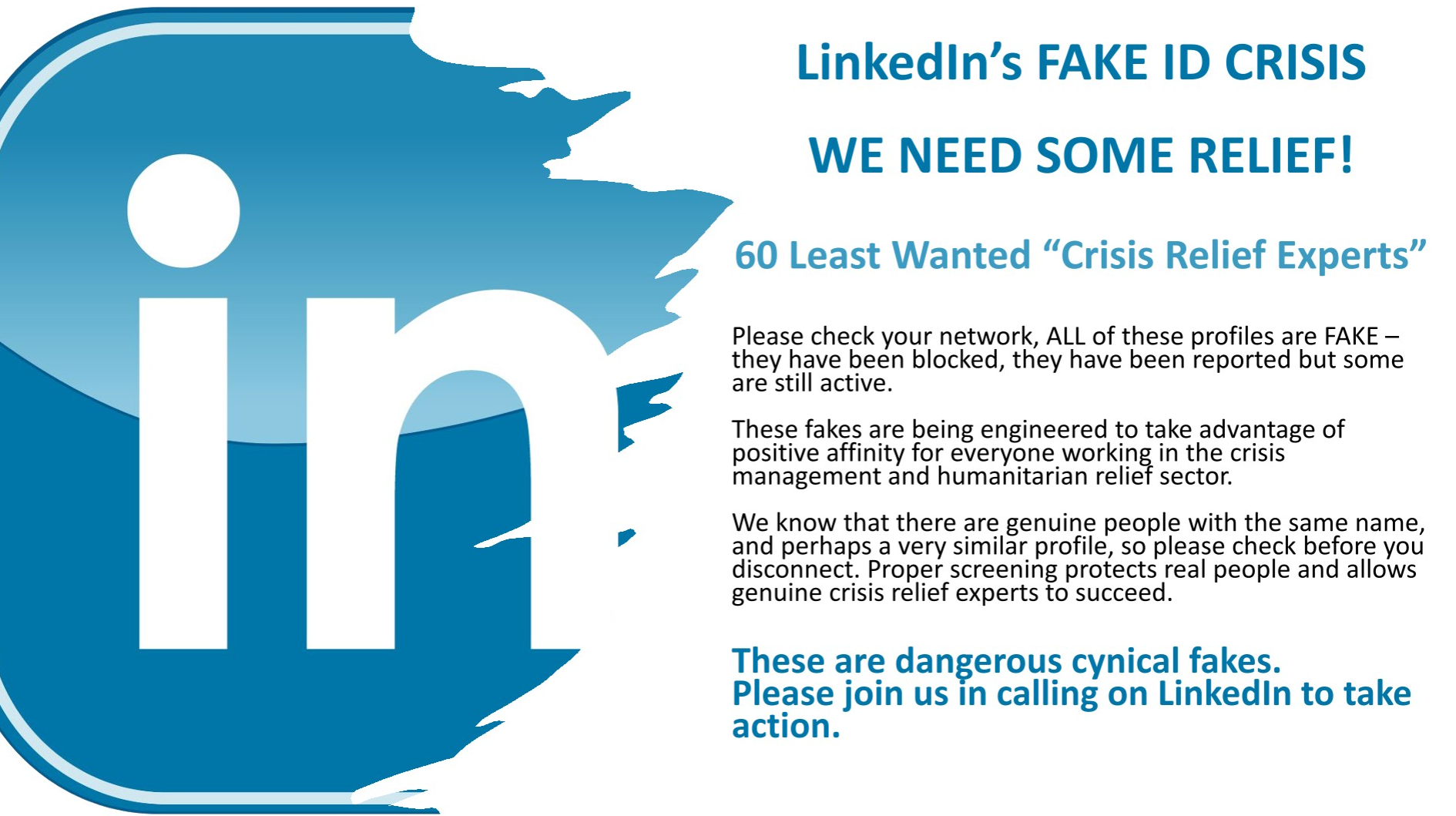
The opening slide for a plea by Taylor’s group to LinkedIn.
Taylor recently posted an entry on LinkedIn titled, “The Fake ID Crisis on LinkedIn,” which lampooned the “60 Least Wanted ‘Crisis Relief Experts’ — fake profiles that claimed to be experts in disaster recovery efforts in the wake of recent hurricanes. The images above and below show just one such swarm of profiles the group flagged as inauthentic. Virtually all of these profiles were removed from LinkedIn after KrebsOnSecurity tweeted about them last week.

Another “swarm” of LinkedIn bot accounts flagged by Taylor’s group.
Mark Miller is the owner of the DevOps group on LinkedIn, and says he deals with fake profiles on a daily basis — often hundreds per day. What Taylor called “swarms” of fake accounts Miller described instead as “waves” of incoming requests from phony accounts.
“When a bot tries to infiltrate the group, it does so in waves,” Miller said. “We’ll see 20-30 requests come in with the same type of information in the profiles.”
After screenshotting the waves of suspected fake profile requests, Miller started sending the images to LinkedIn’s abuse teams, which told him they would review his request but that he may never be notified of any action taken.

Some of the bot profiles identified by Mark Miller that were seeking access to his DevOps LinkedIn group. Miller said these profiles are all listed in the order they appeared.
Miller said that after months of complaining and sharing fake profile information with LinkedIn, the social media network appeared to do something which caused the volume of group membership requests from phony accounts to drop precipitously.
“I wrote our LinkedIn rep and said we were considering closing the group down the bots were so bad,” Miller said. “I said, ‘You guys should be doing something on the backend to block this.”
Jason Lathrop is vice president of technology and operations at ISOutsource, a Seattle-based consulting firm with roughly 100 employees. Like Miller, Lathrop’s experience in fighting bot profiles on LinkedIn suggests the social networking giant will eventually respond to complaints about inauthentic accounts. That is, if affected users complain loudly enough (posting about it publicly on LinkedIn seems to help).
Lathrop said that about two months ago his employer noticed waves of new followers, and identified more than 3,000 followers that all shared various elements, such as profile photos or text descriptions.
“Then I noticed that they all claim to work for us at some random title within the organization,” Lathrop said in an interview with KrebsOnSecurity. “When we complained to LinkedIn, they’d tell us these profiles didn’t violate their community guidelines. But like heck they don’t! These people don’t exist, and they’re claiming they work for us!”
Lathrop said that after his company’s third complaint, a LinkedIn representative responded by asking ISOutsource to send a spreadsheet listing every legitimate employee in the company, and their corresponding profile links.
Not long after that, the phony profiles that were not on the company’s list were deleted from LinkedIn. Lathrop said he’s still not sure how they’re going to handle getting new employees allowed into their company on LinkedIn going forward.
It remains unclear why LinkedIn has been flooded with so many fake profiles lately, or how the phony profile photos are sourced. Random testing of the profile photos shows they resemble but do not match other photos posted online. Several readers pointed out one likely source — the website thispersondoesnotexist.com, which makes using artificial intelligence to create unique headshots a point-and-click exercise.
Cybersecurity firm Mandiant (recently acquired by Google) told Bloomberg that hackers working for the North Korean government have been copying resumes and profiles from leading job listing platforms LinkedIn and Indeed, as part of an elaborate scheme to land jobs at cryptocurrency firms.
Fake profiles also may be tied to so-called “pig butchering” scams, wherein people are lured by flirtatious strangers online into investing in cryptocurrency trading platforms that eventually seize any funds when victims try to cash out.
In addition, identity thieves have been known to masquerade on LinkedIn as job recruiters, collecting personal and financial information from people who fall for employment scams.
But the Sustainability Group administrator Taylor said the bots he’s tracked strangely don’t respond to messages, nor do they appear to try to post content.
“Clearly they are not monitored,” Taylor assessed. “Or they’re just created and then left to fester.”
This experience was shared by the DevOp group admin Miller, who said he’s also tried baiting the phony profiles with messages referencing their fakeness. Miller says he’s worried someone is creating a massive social network of bots for some future attack in which the automated accounts may be used to amplify false information online, or at least muddle the truth.
“It’s almost like someone is setting up a huge bot network so that when there’s a big message that needs to go out they can just mass post with all these fake profiles,” Miller said.
In last week’s story on this topic, I suggested LinkedIn could take one simple step that would make it far easier for people to make informed decisions about whether to trust a given profile: Add a “created on” date for every profile. Twitter does this, and it’s enormously helpful for filtering out a great deal of noise and unwanted communications.
Many of our readers on Twitter said LinkedIn needs to give employers more tools — perhaps some kind of application programming interface (API) — that would allow them to quickly remove profiles that falsely claim to be employed at their organizations.
Another reader suggested LinkedIn also could experiment with offering something akin to Twitter’s verified mark to users who chose to validate that they can respond to email at the domain associated with their stated current employer.
In response to questions from KrebsOnSecurity, LinkedIn said it was considering the domain verification idea.
“This is an ongoing challenge and we’re constantly improving our systems to stop fakes before they come online,” LinkedIn said in a written statement. “We do stop the vast majority of fraudulent activity we detect in our community – around 96% of fake accounts and around 99.1% of spam and scams. We’re also exploring new ways to protect our members such as expanding email domain verification. Our community is all about authentic people having meaningful conversations and to always increase the legitimacy and quality of our community.”
In a story published Wednesday, Bloomberg noted that LinkedIn has largely so far avoided the scandals about bots that have plagued networks like Facebook and Twitter. But that shine is starting to come off, as more users are forced to waste more of their time fighting off inauthentic accounts.
“What’s clear is that LinkedIn’s cachet as being the social network for serious professionals makes it the perfect platform for lulling members into a false sense of security,” Bloomberg’s Tim Cuplan wrote. “Exacerbating the security risk is the vast amount of data that LinkedIn collates and publishes, and which underpins its whole business model but which lacks any robust verification mechanisms.”
—————
Free Secure Email – Transcom Sigma
Boost Inflight Internet
Transcom Hosting
Transcom Premium Domains
—————
Free Secure Email – Transcom Sigma
Boost Inflight Internet
Transcom Hosting
Transcom Premium Domains